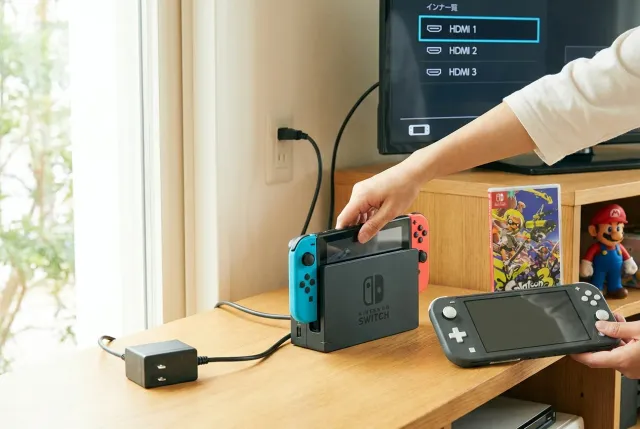
To connect a Nintendo Switch to a TV, connect the official dock’s AC adapter and HDMI cable, select the correct HDMI input on your television, then place the console in the dock with its screen facing forward. The standard Nintendo Switch and Nintendo Switch OLED Model support TV mode; the Nintendo Switch Lite does not output video to a television.
Check whether your Nintendo Switch supports TV mode
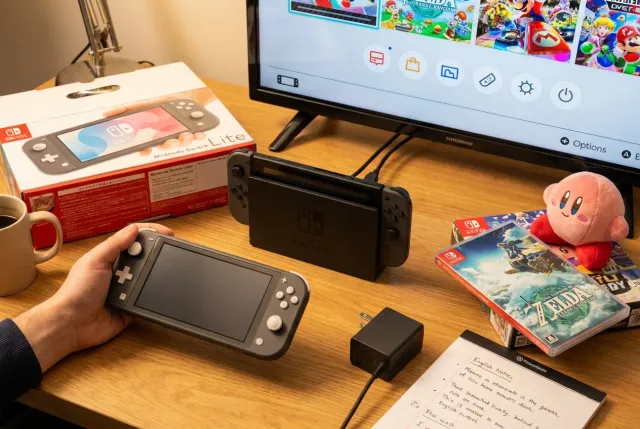
Before connecting any cables, identify which Nintendo Switch model you have. This is the most important step because not every Switch console can display games on a television.
- Nintendo Switch: The original hybrid console supports TV mode when used with a compatible dock.
- Nintendo Switch OLED Model: Supports TV mode and includes a dock with a wired LAN port in many regions.
- Nintendo Switch Lite: Does not support TV output. It is designed exclusively for handheld play and cannot be connected to a TV with an HDMI adapter, USB-C hub, or standard Switch dock.
If you are looking for accessories, consoles, or Japan-exclusive Nintendo items, browse the Nintendo collection on JPFinds. When shopping for a dock separately, make sure it is made for your exact Switch generation and is complete with its power requirements.
What you need to connect a Nintendo Switch to a TV
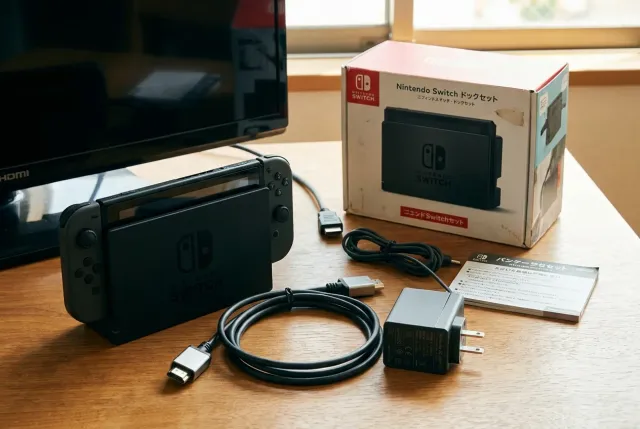
For a straightforward setup, gather the console, a compatible dock, the Nintendo Switch AC adapter, an HDMI cable, and a television or monitor with an available HDMI port. The original docked setup is usually the most reliable option because the dock provides both video output and sufficient power to the console.
Essential equipment
- A Nintendo Switch or Nintendo Switch OLED Model
- A compatible Nintendo Switch dock
- The Nintendo Switch AC adapter, ideally the official adapter supplied for the system
- An HDMI cable
- A TV or monitor with HDMI input
It is best to use the official Nintendo AC adapter whenever possible. A phone charger or low-wattage USB-C power adapter may charge the console slowly in handheld mode but may not deliver the stable power needed for TV mode. If the dock does not receive enough power, the Switch may fail to show an image, repeatedly connect and disconnect, or remain in handheld mode.
Most modern televisions have several HDMI ports, often labeled HDMI 1, HDMI 2, HDMI ARC, or HDMI eARC. Any regular HDMI input can carry the Switch picture and sound. ARC and eARC ports also work, although their extra audio-return features are not necessary for this setup.
How to connect a Nintendo Switch to a TV step by step
Set up the dock before placing the console inside it. Connecting the power adapter first helps the dock enter the proper operating state when the Switch is inserted.
- Open the back cover of the dock. On official Nintendo Switch docks, the cable ports are behind a removable rear panel.
- Connect the AC adapter to the dock. Plug the USB-C end into the port marked ·AC ADAPTER.· Connect the other end to a wall outlet.
- Connect the HDMI cable. Plug one end into the dock’s ·HDMI OUT· port and the other end into an available HDMI port on your TV.
- Close the dock cover carefully. Check that the cables are not tightly bent or pinched.
- Turn on the television. Use the TV remote’s Input, Source, or HDMI button to select the HDMI port you used.
- Insert the Switch into the dock. Remove any bulky case that prevents the console from seating properly. Place the console screen-forward into the dock and press it down gently until fully seated.
- Wait for the display to switch. The Switch screen should turn off after a moment, and the image should appear on the TV.
The console does not need to be powered off before docking. If it is in sleep mode, pressing a button on a paired controller, such as the A button or Home button, normally wakes it. You can also press the console’s power button briefly before docking it.
Using Joy-Con or a wireless controller while docked
Once the Switch is in TV mode, detach the Joy-Con controllers and use them wirelessly, attach them to a Joy-Con grip, or pair a compatible wireless controller. The console itself remains in the dock while you play. Keep in mind that some games require specific controller arrangements, motion controls, or individual Joy-Con use.
Select the correct TV input and adjust display settings
A black TV screen does not always mean the Switch connection has failed. In many cases, the television is simply set to the wrong source. If you plugged the HDMI cable into HDMI 2, select HDMI 2 from your television’s input menu.
When the image appears, open the Switch HOME Menu and go to System Settings > TV Output. These settings let you adjust the display to match your television and preferences.
- TV Resolution: Choose Automatic for most TVs. The Switch can output up to 1080p in TV mode, depending on the game and display setup.
- RGB Range: Leave this on Automatic unless you are correcting washed-out blacks or crushed shadow detail on a monitor or TV.
- Screen Burn-In Reduction: This setting can dim the display after a period of inactivity. It does not affect whether the TV connection works.
- Adjust Screen Size: Use this if the image is cut off at the edges or surrounded by an unusually large border.
If your TV overscans the image, look for a television setting such as Just Scan, Screen Fit, 1:1, Full Pixel, or Fit to Screen. Names vary by manufacturer, but the goal is to show the full HDMI image without cropping. For general product and system information, Nintendo’s official Nintendo website is the most reliable starting point for your region.
How to connect a Nintendo Switch to a monitor
Connecting a Nintendo Switch to a computer monitor follows the same basic process as connecting it to a TV: dock power, connect HDMI, select the monitor’s HDMI input, and place the console in the dock. The main difference is audio. Many monitors do not have speakers, while most televisions do.
If your monitor has built-in speakers, make sure its volume is turned up and that the correct audio source is selected. If it has a headphone jack, you may be able to connect headphones or powered speakers to the monitor. Alternatively, connect wired headphones directly to the Switch’s headphone jack while the console is docked, if your setup and cable position allow it.
A monitor with a higher resolution or refresh rate will still work, but the original Switch family outputs its own supported signal rather than automatically using the display’s maximum specifications. A 4K monitor can accept the Switch’s 1080p or 720p output and scale it for the panel.
Troubleshoot a Nintendo Switch that will not display on the TV
If the Switch charges in the dock but the TV remains blank, work through the connection in a deliberate order. Avoid repeatedly forcing the console into the dock or changing several components at once; testing one variable at a time makes it easier to find the cause.
Try this restart sequence
- Remove the Switch from the dock.
- Turn off the TV or monitor.
- Unplug the HDMI cable from both the dock and the display.
- Unplug the AC adapter from the wall outlet and dock.
- Wait around 30 seconds.
- Reconnect the AC adapter to the wall and dock first.
- Reconnect the HDMI cable, then turn on the TV and select the correct input.
- Insert the Switch into the dock.
Check the HDMI cable and TV port
Test another HDMI cable if one is available. HDMI cables can fail internally even when they appear undamaged. Also test another HDMI port on the TV. If another device, such as a streaming stick or game console, works through the same cable and port, the issue is more likely related to the Switch, dock, or power adapter.
Remove accessories and cases
Thick protective shells, poorly fitting USB-C accessories, and debris around the USB-C port can stop the Switch from connecting securely to the dock. Remove the case before testing. Do not force the console into the dock, and do not scrape the USB-C port with metal tools.
Confirm that the console is awake
Press the power button once, wait briefly, then press the Home button on a paired controller. If the console’s own screen remains lit while it is correctly seated in a powered dock, TV mode has not engaged. Recheck the AC adapter connection and try reseating the console.
Be cautious with third-party docks
Some third-party docks and USB-C video adapters may work, but compatibility and power delivery can vary. Use equipment from a reputable manufacturer and follow its instructions exactly. If you are diagnosing a problem, test first with an official Nintendo dock and official AC adapter where possible. That establishes whether the issue is the console or an accessory.
Get the best picture and sound from your docked Switch
After the connection works, a few small adjustments can make the setup more comfortable. Start with the TV’s Game Mode, if it has one. This mode usually reduces input lag by limiting some image processing. It is particularly useful for fast platformers, fighting games, racing games, and competitive titles.
- Enable Game Mode: Look in the TV’s picture or general settings menu.
- Use Automatic resolution first: Let the Switch and TV negotiate a compatible resolution before changing manual settings.
- Adjust TV sharpness conservatively: Excessive sharpness can add halos around text and sprites.
- Check the screen size setting: Make sure interface elements at the corners are visible.
- Position the dock securely: Keep it on a stable, ventilated surface rather than covering it with fabric or placing it in a tightly enclosed cabinet.
For a tidy entertainment setup, use a short, good-quality HDMI cable and leave enough slack behind the dock so cables are not under tension. If you collect Japanese editions, controllers, or official accessories for your setup, the JPFinds Nintendo hub is a convenient place to explore listings from Japanese stores and marketplaces.
When a Nintendo Switch cannot connect to a TV
The Nintendo Switch Lite cannot be converted into a TV-output console. Although it has a USB-C charging port, that port does not support video output. Buying a dock, HDMI adapter, capture device, or USB-C-to-HDMI cable will not add TV mode to a Switch Lite.
Similarly, a capture card is not a substitute for a dock. Capture cards are designed to receive and record or display an HDMI signal from a source device. The Switch must first generate that HDMI signal through a compatible dock. Capture cards can add delay and are generally unnecessary if your goal is simply to play on a television.
If an original Switch or OLED model still cannot show a picture after testing a known-good official adapter, dock, HDMI cable, and display, consider contacting Nintendo support in your region. Hardware faults involving the USB-C port, dock electronics, or console circuitry need professional diagnosis.
Related guide: For Nintendo products and accessories from Japan, visit the Nintendo shopping hub.