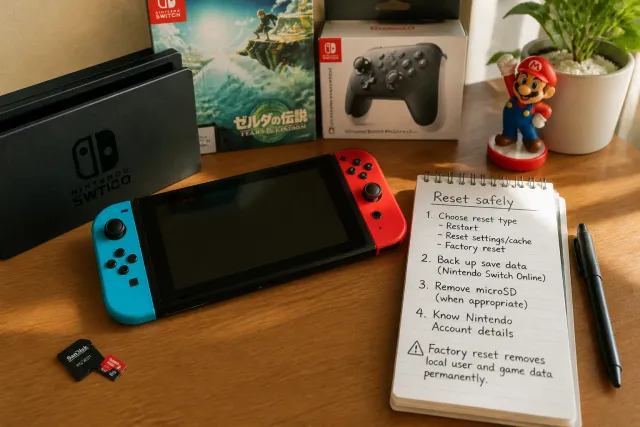
To reset a Nintendo Switch safely, first decide whether you need a simple restart, a reset of settings and cache, or a full factory reset. Back up supported save data through Nintendo Switch Online if available, remove your microSD card when appropriate, and make sure you know the Nintendo Account details linked to the console. A factory reset permanently removes local user and game data.
Know which Nintendo Switch reset you need
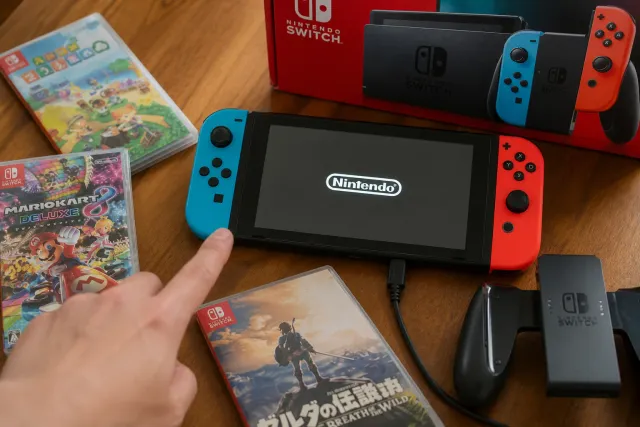
·Reset· can mean several different things on a Nintendo Switch. Choosing the least destructive option first can save time and prevent accidental data loss. If the console is slow, frozen, or behaving strangely, a restart is usually the right starting point. A factory reset should be reserved for significant software problems, preparing the system for another user, or clearing personal information.
Restart the console
A normal restart closes software and reloads the Switch operating system without deleting games, users, screenshots, settings, or save data. Use it when a game will not close properly, the Home menu is unresponsive, wireless connections are acting up, or the system has been running for a long time.
To restart normally:
- Press and hold the Power button for about three seconds.
- Select Power Options.
- Select Restart.
If the screen and controls are completely frozen, hold the Power button for roughly 12 seconds to force the system off. Wait a few seconds, then press Power once to start it again. A forced shutdown is useful in an emergency, but it is not ideal as a routine way to turn off the console because it can interrupt an active save or update.
Initialize only the console settings
The Switch includes an option to restore console settings without deleting user accounts, save data, screenshots, videos, or downloaded games. This is helpful when system-level settings are causing trouble, such as unusual button mapping, network configuration issues, or display settings that need to be returned to their defaults.
This option resets items such as network settings, time settings, parental-control settings, and some system preferences. It is less disruptive than a full initialization, but you may need to reconnect to Wi-Fi and reconfigure your preferred options afterward.
Factory reset the system
A full factory reset, called Initialize Console in the Switch menus, removes user accounts, locally stored save data, screenshots and videos stored in system memory, downloaded software, and console settings. It returns the console close to its out-of-box software state. This is the correct option only when you understand what will be erased and have completed the necessary preparation.
Protect data before you reset a Nintendo Switch
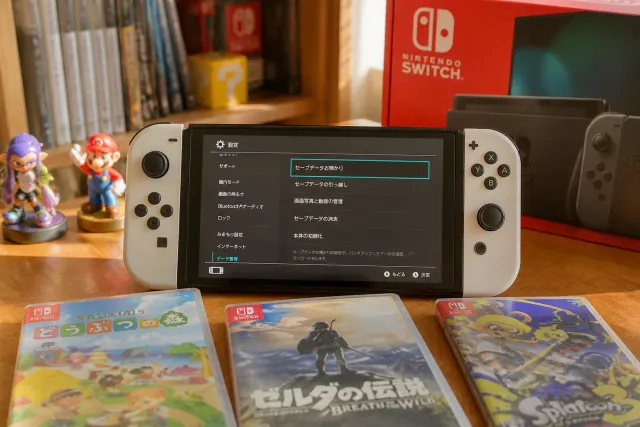
The most important part of a safe reset happens before you open the reset menu. A factory reset cannot be undone. Even if you intend to start fresh, take a few minutes to check what is stored on the console and what can be recovered later.
Check save-data backup eligibility
Many Switch games support Save Data Cloud through an active Nintendo Switch Online membership. If your game supports it and cloud backup is enabled, current save data may be restored after you sign in on the same Nintendo Account again. However, not every game supports cloud backups. Some titles use their own transfer rules or restrict cloud backup features.
Before resetting, open System Settings, then Data Management, and review your save-data options. If you use cloud backups, confirm that the relevant game has recently uploaded its data. Do not assume that a save is protected simply because you have a subscription. Check the individual title and the user profile associated with it.
For official account and service information, consult the Nintendo homepage and select your regional support area.
Understand what a microSD card does and does not save
A microSD card can hold downloaded software, updates, screenshots, and videos, depending on your storage settings. It does not normally hold Switch save data; save files are stored in the console’s internal memory. Removing the microSD card before a full reset can help preserve media files and downloaded content stored on it, but it will not protect local saves.
If you plan to use the same microSD card again, turn the Switch fully off before removing it. Do not remove a card while the console is powered on or while an update, download, or data transfer is in progress. After a reset, the system may ask to format a card that has been used in another Switch; read every prompt carefully before confirming.
Record account and network details
Write down or securely store the email address and sign-in method for each Nintendo Account used on the console. If you use a passkey, two-step verification, or a child account within a family group, make sure you can access the relevant authentication method. Also note the Wi-Fi network name and password if you will need to reconnect after resetting.
If parental controls are enabled, ensure that the PIN and linked parental-controls app access are available. Resetting settings can change how the console is managed, while a full factory reset can remove local parental-control configuration entirely.
How to restart or power-cycle a frozen Nintendo Switch
A frozen console does not always require a factory reset. Start with a forced power cycle, which is often enough to recover from a temporary crash. This process does not intentionally erase content, although any unsaved progress in an open game can be lost.
- Disconnect the Switch from its dock if it is docked.
- Hold the Power button on the top of the console for at least 12 seconds.
- Release the button and wait five to ten seconds.
- Press the Power button once to turn the system back on.
If the console does not start, connect the official or compatible USB-C charger directly to the Switch and leave it connected for a while before trying again. Check that the outlet and cable are working. Avoid repeatedly forcing shutdowns if the system is showing an update screen; interruptions during an update can create further software issues.
If a specific game repeatedly freezes after a restart, check for software updates, then consider deleting and redownloading that game. Deleting downloaded software does not normally delete its save data, but always read the on-screen wording before confirming any deletion. This troubleshooting step is more targeted than resetting the entire console.
How to reset settings without deleting user data
When the console works but its settings are incorrect, use the non-destructive initialization option instead of a factory reset. On an updated Switch system, go to System Settings, scroll to System, choose Formatting Options, and select Restore Factory Settings only if you intend a full wipe. For settings-only reset options, follow the labels displayed on your specific system version carefully, as menu names and placement may change with system updates.
Before accepting any prompt, pause and review what Nintendo says will be erased. The key distinction is whether the screen states that user information and save data will remain. If it does not clearly say they remain, treat the action as destructive and back out until you have verified your backups.
After a settings reset, test the original problem methodically. Reconnect to Wi-Fi, check the date and time, confirm TV output if you play in docked mode, and test Joy-Con pairing. Changing several settings at once can make it difficult to identify what fixed the issue.
How to factory reset a Nintendo Switch from System Settings
Use a complete factory reset only after saving what you can and confirming that you are ready to remove all local data. Make sure the Switch has enough battery power or is connected to its charger. Do not begin the process if the console is installing a system update or if you may need information stored only on the device.
On most Nintendo Switch models, the general route is:
- From the Home menu, open System Settings.
- Scroll down and select System.
- Select Formatting Options.
- Choose Initialize Console.
- Read the warnings, then follow the confirmation prompts.
The console may require an internet connection during the process in order to verify that it can be initialized. If prompted to deregister or verify a Nintendo Account, follow the on-screen steps. Once confirmed, the Switch restarts and erases local content. Leave it powered on until it reaches the initial setup screen.
After initialization, you can set up the console as new or sign back in with your Nintendo Account. Redownloadable purchases are generally tied to the account rather than remaining permanently on the hardware, but local saves will return only if they were backed up through a supported method or transferred before the reset.
Use Maintenance Mode when you cannot access the menus
Maintenance Mode is a recovery menu for situations where the Switch will not boot normally or the standard Settings menu cannot be reached. It should be used carefully because it contains both update and initialization choices.
To enter Maintenance Mode:
- Power the Switch completely off by holding Power for at least 12 seconds if necessary.
- Press and hold both the Volume Up and Volume Down buttons.
- While holding both volume buttons, press the Power button once.
- Continue holding the volume buttons until the Maintenance Mode menu appears.
From this menu, you may see options to update the system or initialize the console. One initialization option may be described as preserving save data. Read its wording exactly rather than selecting based on memory. A preservation option can still remove users, screenshots, downloaded software, and settings, so it is not the same as leaving the system unchanged.
If the console cannot reach Maintenance Mode, shows persistent error messages, will not charge, or has physical damage, avoid repeated reset attempts. Record the error code and consult official support for the appropriate region. Resetting is a software tool; it cannot correct every hardware or account issue.
What to do after a Nintendo Switch reset
When the initial setup screen appears, choose your language, region, internet connection, and time zone. Sign in with the correct Nintendo Account before downloading software, especially if multiple household members have separate accounts. This helps ensure that purchases and eligible cloud saves are associated with the right profile.
Next, check for a system update, reconnect controllers, and test the console before downloading a large library. If you restored a cloud save, open the relevant game and verify that the expected progress appears. For games with separate transfer or account-linking processes, complete those steps before assuming data has been restored.
If you are rebuilding a setup with extra controllers, replacement accessories, or Japanese-market Nintendo items, browse the current Nintendo selection on JPFinds. You can also explore the Nintendo hub for related console and character merchandise.
Common reset mistakes to avoid
- Choosing Initialize Console for a minor glitch: Restart first, then try targeted troubleshooting such as updating the system or software.
- Assuming every game supports cloud saves: Check each title before erasing local data.
- Thinking saves are stored on the microSD card: Switch save data is normally kept in internal memory.
- Forgetting which user owns a digital purchase: Sign back in with the account that originally obtained the software.
- Interrupting an update or initialization: Keep the console charged and allow the process to finish.
- Ignoring error codes: An error code can identify a network, account, storage, or hardware problem more precisely than a broad reset.
Frequently asked questions about resetting a Nintendo Switch
Will resetting a Nintendo Switch delete my games?
A normal restart will not. A full factory reset deletes downloaded software from the console, while game cards are not erased. Digital games can usually be downloaded again using the account that obtained them, but local save data may be lost if it was not backed up or transferred.
Does a factory reset remove my Nintendo Account?
It removes the account user from that console, but it does not delete the Nintendo Account itself. You can generally sign in again after setup, provided you have the correct account credentials.
Can I reset a Switch without losing save data?
You may be able to use a settings-only reset or a Maintenance Mode option that preserves save data, depending on the issue and menu available. A standard full initialization deletes local saves, so confirm the exact option before proceeding.
Why is my Nintendo Switch still not working after a reset?
The problem may involve hardware, a damaged accessory, battery charging, a network issue, or an account restriction. Note any error code and use official Nintendo support guidance rather than repeatedly resetting the system.